Create and Use a Prompt Library
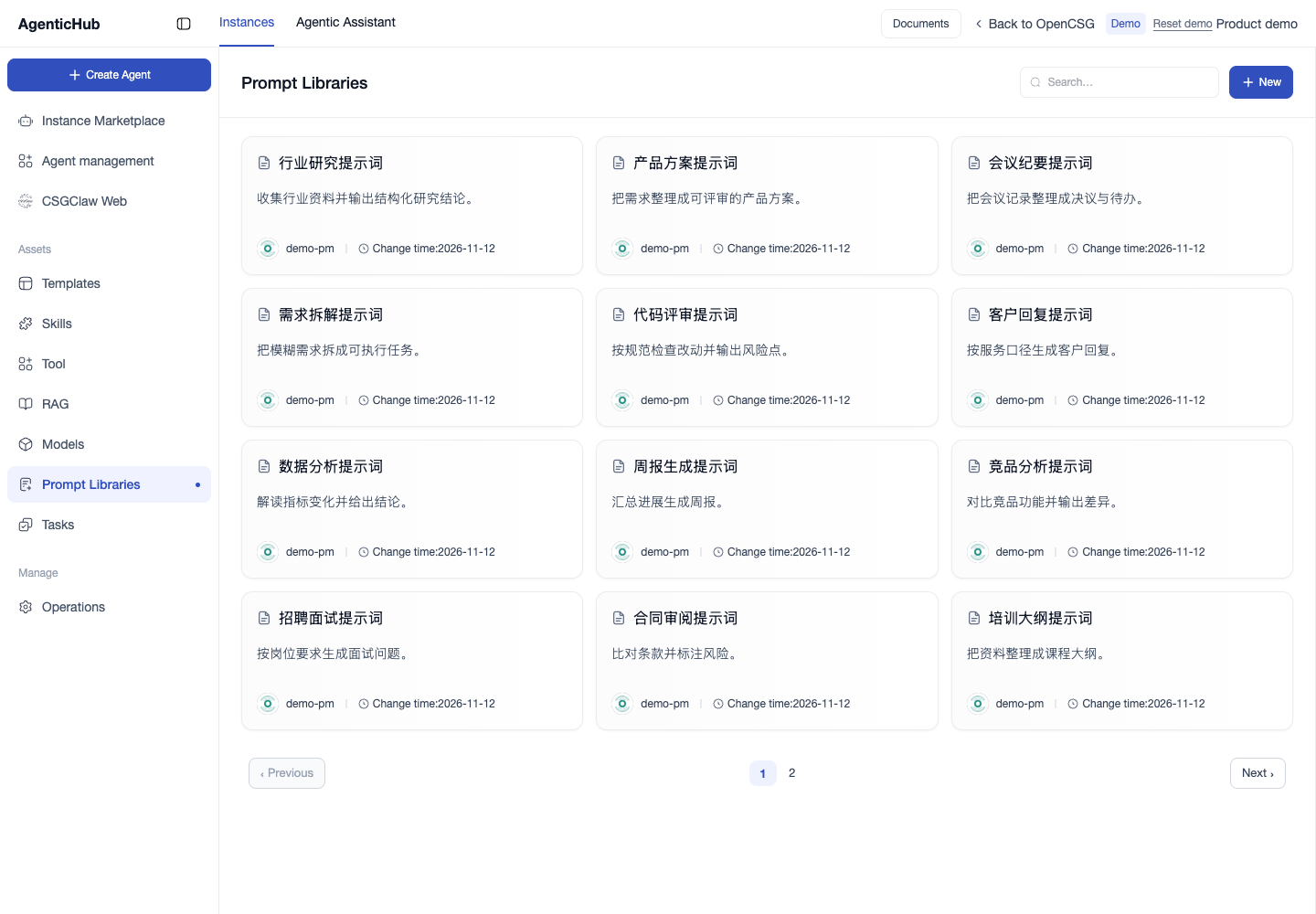
- Open Agents → Prompt Libraries → New.
- Choose a personal or organization owner. Enter a name, display name, and description, then set the license and visibility as requested by the form.
- Open the new library and select New Prompt. Enter a title and body. Add a language, scenario, or source where useful.
- Save and open the prompt details. Maintainers can edit the prompt or update the library settings.
Reuse a prompt
Choose Common Prompts in the Agentic Assistant input area, or copy the body from the prompt details. Add the current task material before sending. For example, use “Extract decisions, actions, owners, and due dates from these meeting notes. Mark any missing value as To be confirmed.” Test the prompt with a fixed sample and verify that intended members can open the library.
For a rule that should apply whenever the agent is used, add it to the agent's system instructions and publish the change.