Natural-language creation
The Agentic assistant is a general-purpose agent for day-to-day work. Besides using conversation to create or adjust dedicated agents (the focus below), it can handle Q&A, writing, search, and analysis on its own. Sections in this page apply to both; sentences strongly tied to instances, templates, and saved config mainly apply when you are building or changing a dedicated agent.
Below, the Agentic assistant: first describe the agent you want in the bottom input (goals, roles, screening rules, etc.). You can also use voice input, then edit the transcribed text before sending—see Voice input for prompts. After you send, the main area shows a structured reply (principles, outputs, how to use) so you can align expectations and iterate. For Git-based skill repo workflows on your machine, see Skills · Clone with Git, develop locally, push.
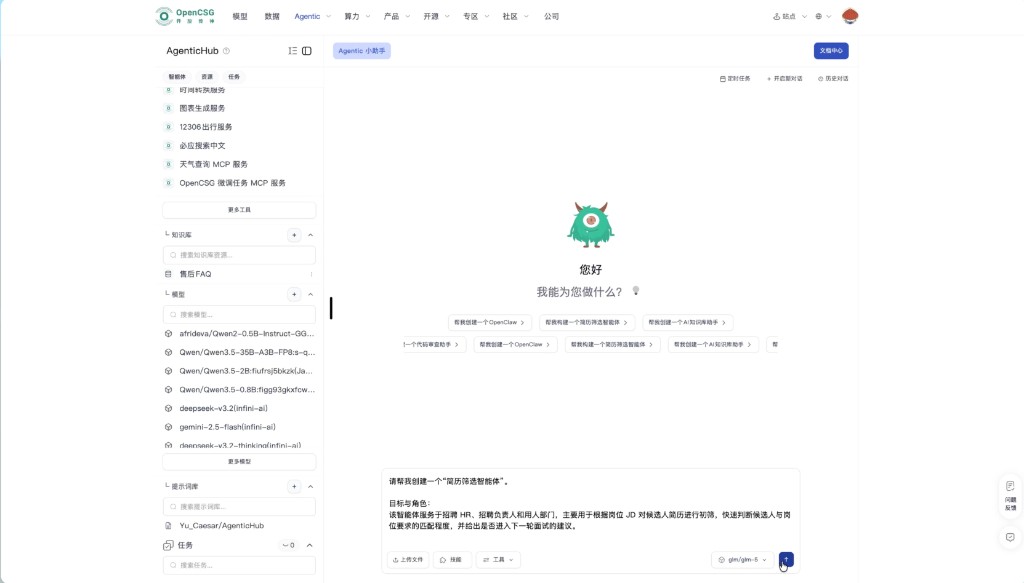
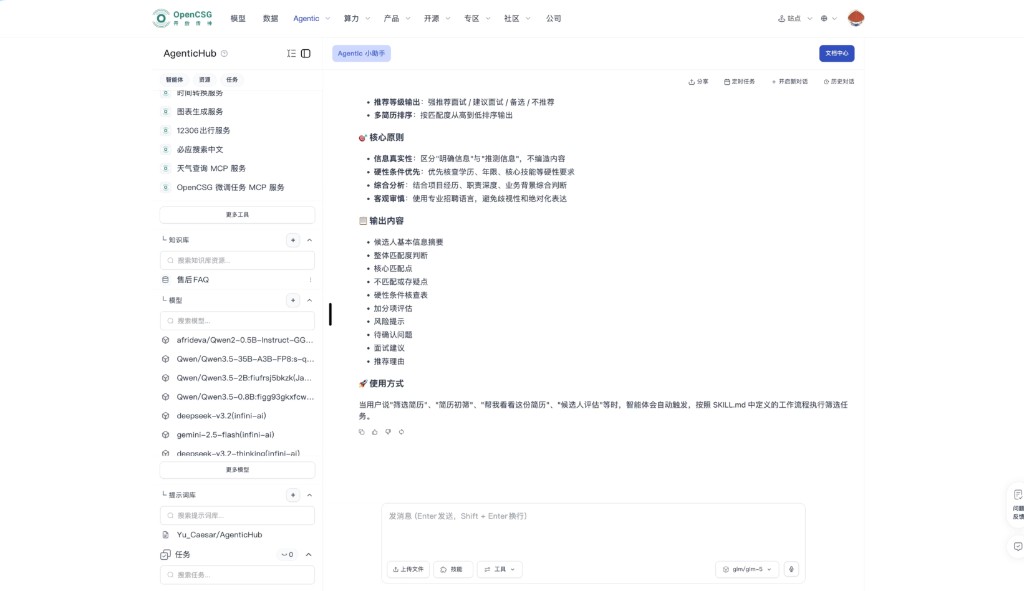
Describe needs with prompts
When you use the assistant to build or tune a dedicated agent, your prompt is both the requirements doc and the basis for generated instances and settings. A clear prompt helps the assistant capture role, flow, and boundaries in one go; a vague one leads to more back-and-forth. For general work without building an instance, still state goals and constraints—those may not map to template fields. Break one full requirement into blocks and order by importance instead of a single slogan.
What to include
- Goal and role — Who the agent serves and what it does, in one business line, e.g. first-pass screening for technical resumes for recruiting.
- Scenario — When it is used and what is upstream/downstream. For HR resume screening today, say that HR uploads resumes and JDs in AgenticHub, analysis is triggered in instance chat or a designated area, and results stay in-product or export; if other entry points are future plans, say so in a separate sentence so scope does not blur.
- Inputs and outputs — What the user or system provides and in what form you want results, e.g. PDF resume + one JD in, sorted table and short interview tips out.
- Success criteria — What “good” means, e.g. must check JD hard requirements, do not invent experience not in the resume, list why low matches fail.
- Hard constraints — Compliance and access, e.g. data may not leave a given space, no unauthorized tools, output language fixed to Chinese/English, etc.
- When unsure — Whether to say “don’t know,” list open questions, or hand off—avoid silent fabrication.
Writing tips
- Prefer observable behaviors and checklists over empty adjectives; replace “smart” with verifiable rules.
- Put proper nouns, internal acronyms, and scoring rules in the first message to reduce term confusion.
- If you have good and bad example answers, add one of each to align tone and off-limits content.
- When you need a channel or tool, name Feishu, WeChat, MCP, or a skill class so the assistant can suggest the right path. If you only use in-app upload for now, say you are not using external IM or unavailable capabilities to avoid useless config.
If one message is not enough
- Put the main path and acceptance criteria first; add detail in follow-up rounds, one dimension per round when possible.
- Long tables or policies belong in resources or attachments; reference file names in the prompt instead of pasting the full text.
With this structure, the assistant can more reliably turn your words into storable templates, instance parameters, and a checklist for later integration.
Creation flow
After you send a requirement, the assistant usually restates understanding, then asks for missing information in turns instead of dumping a huge, immutable config. When you complete the answers, you get a concrete plan and are guided in the UI to save, create an instance, or attach skills. What you actually click to confirm and save in the UI is authoritative—verbal agreement in chat does not replace formal configuration.
Typical phases
- Clarify — Align role, scenario, I/O, and constraints; the assistant may ask about priorities.
- Draft — Suggested template, model tier, and skill/tool mix in text for you to accept or adjust.
- Apply — Navigate to instance creation, template save, or resource binding and complete the wizard.
- Self-check — One test input or sample file for a minimal path before broad use.
When credentials or external capabilities appear
If the plan needs keys or identity checks, finish setup under Tools → API auth (and similar) as the product indicates; see UI tour. For HR screening that is in-app upload only, you can decline or disable optional external channels the assistant might suggest so you do not add unused dependencies.
Iterating over multiple turns
The first message is rarely final; iteration is normal. Control how much you change per turn and keep comparable intermediate versions so changes do not become chaotic.
Suggested rhythm
- Change one dimension per turn—e.g. this round only the scoring rule, next round only column order—so you know what caused a regression.
- When following up, bring a concrete bad example or redacted sample, e.g. a borderline resume and whether it should pass or fail and why.
- For stable, long-lived rules, ask the assistant to fold them into saved prompts or resource notes instead of re-pasting policy text in chat.
When to start a new conversation
- You fully switch from agent A to B, or you test a conflicting configuration—New conversation avoids old context bleeding in.
- For small tweaks on the same requirement, the same thread helps the assistant keep prior conclusions.
Long-term memory and resources
Stable conclusions fit long-term memory or knowledge resources, maintained by you or the assistant; the chat should hold only current experimental discussion so test prompts do not mix with production wording.
Examples and templates
The fastest start is often a template or gallery solution close to your goal, then describe only the deltas in the assistant instead of the whole universe from scratch.
Where to start
- In the left template list or resource gallery, pick entries whose names or descriptions match role, industry, e.g. resume screening, knowledge Q&A, operations assistant.
- After Run or create instance, return to the assistant with your org-specific rules, e.g. internal job levels or blocked terms.
Team assets
- When a configuration is stable, save it as a template, prompt repo snippet, or runbook with owner and date.
- For major changes, log reason and impact so other HR or admins can compare versions.
With in-app HR upload
- After creation, day-to-day screening is usually by uploading resumes and JDs in instance chat or the described area; in training, separate “create with the assistant” from “daily upload in the instance” to reduce confusion for new users.