Run and manage
This page explains how templates and instances differ, common operations, and ops notes. For layout, see UI tour. For HR resume screening, daily work is often upload-and-analyze inside an instance; use Agentic assistant to create or change dedicated agents.
Templates
A template is the blueprint: role, recommended model, skills, tools, and orchestration or chat policy. One template can back many instances for different org units or job families without rewriting prompts from zero.
When templates help most
- The same class of work repeats, e.g. many recruiting lanes share first-pass logic; only the JD and thresholds differ.
- You want a proven design as a controlled asset for newcomers or partners.
Typical flow
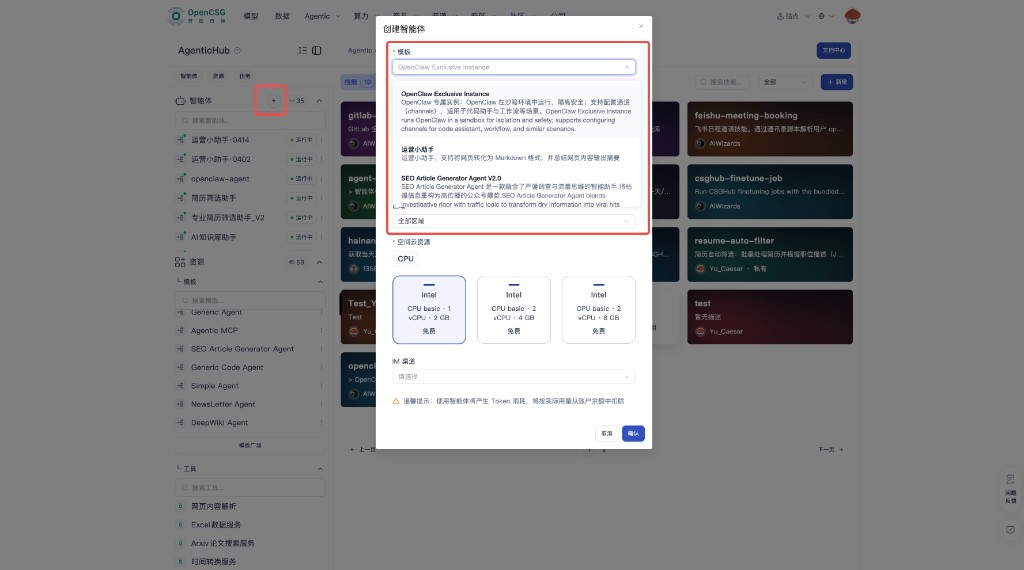
- Browse or search the left Templates list; read description and dependencies.
- Use Run (or equivalent) to start instance creation; set name, visibility, and required resources in the wizard.
- If a template is maintained by someone else, watch for upgrades or deprecation and assess impact on existing instances.
Version and change
- After a template changes, existing instances may not auto-migrate; follow the product to upgrade, rebuild, or run old and new in parallel.
- For production templates, use review or canary before org-wide rollout.
Instances
An instance is where users open chat, upload files, and read output. Each instance has its own state (running, stopped, error) and maps to the left list and top tabs.
Lifecycle
- Create — Usually from Run on a template; then appears in the left list; pin or favorite if supported.
- Run and pause — Running means it can serve; pause for throttling, saving quota, or stopping accidental batch runs.
- Stop and delete — Stopped: no new requests; before delete, export results and check downstream tasks.
Day to day
- After opening, sub-tabs may include Agent chat and Workflow—pick by task type.
- For HR today, resumes and JDs are often uploaded in instance chat or a described area; exploratory chat with the assistant can stay separate to avoid mixed context.
List affordances
- Status, lock icons, and “more” menus are environment-specific; locks often mean private or restricted—confirm you are allowed before use.
Instance configuration
Configuration controls who can use the instance, what is remembered, and which tools are allowed. Field names and grouping follow the console; below is conceptual.
Access and visibility
- Least privilege: who may use instances that hold sensitive data; avoid “everyone” defaults for private flows.
- If share links or embeds exist, review expiry and revoke paths.
Memory and context
- Long-term vs session memory changes UX and compliance—read product and legal before toggling.
- In strict settings, turn off unneeded persistent memory; keep only what the task needs in context.
Skills and tools
- Enable only what the business really needs; disable idle tools to cut misuse and attack surface.
- For secrets and auth, use API auth in tools; see UI tour, OpenClaw, MCP.
After changes
- Regression-test with a standard input set, then tell stakeholders before they switch; avoid changing production in peak hours without notice.
Monitoring and troubleshooting
When an instance is stuck, output looks wrong, or a task fails, use a fixed checklist instead of only scrolling chat.
First data to collect
- Instance name, time window, model used, and whether config or a big file just changed.
- Last failure message or error code in task or instance details; open logs if available; also see the error-code topic in the sidebar.
Common directions
- Network or auth: check API auth expiry, allowlists, and callback URLs.
- Quota or throttling: check plan and console alerts; reschedule or request capacity.
- Prompt or resource change: roll back to the last known-good version and A/B.
Escalation
- Repro steps and screenshots in a ticket or ops channel.
- For repeat failures, add a runbook or knowledge item to shorten the next fix.